PowerShell is Windows’ modern command line: with a few commands you can see what is installed, update programs, check disks and services, and repeat the same tasks the same way every time. This is the first guide in the Guides section and covers the basics you will need in all the others. You do not need to be a programmer: follow the steps and read what each command does before pressing Enter.
Before you start
- System: Windows 10 or Windows 11. PowerShell is already installed.
- Account: a standard user is enough for almost everything. Commands that change the system need an administrator window: the guide says so each time.
- Golden rule: never paste commands from websites, emails or fake CAPTCHAs unless you know what they do (see the security section).
Step 1: open PowerShell
- Windows 11: right-click the Start button, then Terminal. Windows Terminal opens with a PowerShell tab.
- Windows 10: search for PowerShell in the Start menu and open Windows PowerShell.
- As administrator: right-click Start, Terminal (Admin), or right-click the PowerShell icon and choose Run as administrator. Windows asks for confirmation (User Account Control).
How to tell which mode you are in: a normal window shows your user folder in the prompt, for example PS C:\Users\mario>; an administrator window usually starts in PS C:\Windows\system32> and the title bar says Administrator. Use the administrator window only when needed, and close it afterwards.
Step 2: check the version
$PSVersionTable.PSVersion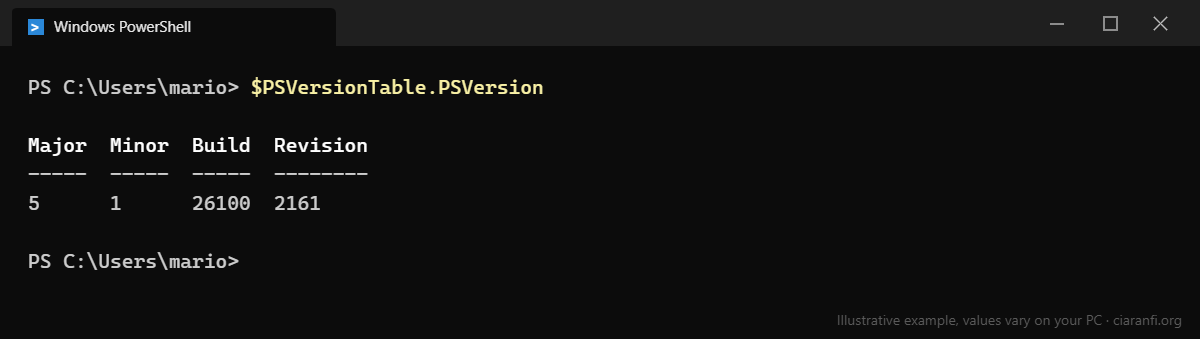
| Windows PowerShell 5.1 | PowerShell 7 | |
|---|---|---|
| Included in Windows | Yes, always | No, installed separately |
| Command to start it | powershell |
pwsh |
| Updates | Security fixes only | Regular new releases |
| Compatibility | Best with older Windows modules | Almost all modules; faster and cross-platform |
Version 5.1 is fine for these guides. If you want version 7, install it with winget (the tool covered in the next guide); it runs side by side with 5.1 without replacing it:
winget install --id Microsoft.PowerShell --source wingetStep 3: how commands are built
PowerShell commands are called cmdlets and always follow the Verb-Noun pattern: Get-Process reads processes, Stop-Process ends them, Get-Service lists services. The most common verbs:
| Verb | Meaning | Risk |
|---|---|---|
Get |
Reads and shows information | None: changes nothing |
Test |
Checks something and answers true or false | None |
Set, New |
Changes or creates | Medium: read what it changes |
Remove, Stop, Clear |
Deletes, stops, empties | High: try it with -WhatIf first |
Parameters start with a hyphen: Get-ChildItem -Path C:\Windows -Filter *.log. Many commands that change the system accept -WhatIf, which shows what would happen without doing it, and -Confirm, which asks before each item.
Three time-saving tricks
- Tab key: completes command names, parameters and paths. Type
Get-Serand press Tab. - Up arrow recalls previous commands; Ctrl+R searches the history.
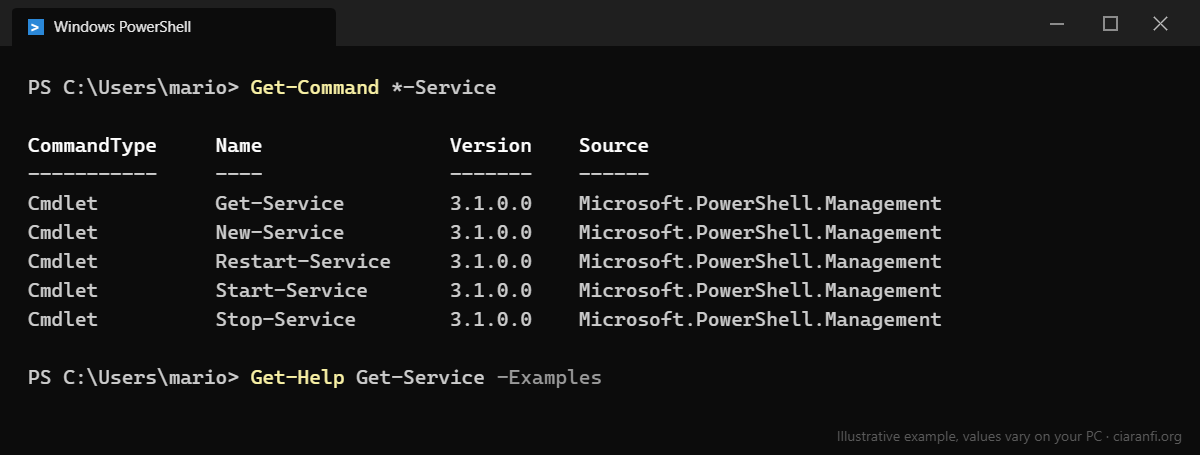
- Help:
Get-Help Get-Service -Examplesshows ready-made examples;Get-Help Get-Service -Onlineopens the official documentation in your browser. To find a command:Get-Command *service*.
Step 4: ten commands worth knowing
| Command | What it does |
|---|---|
Get-ComputerInfo -Property OsName, OsVersion, CsModel |
Operating system, version and PC model |
Get-ChildItem C:\Users\mario\Downloads |
Lists the files in a folder (the dir alias does the same) |
Get-Process |
Running programs and processes |
Get-Service |
Windows services and their status |
Get-Volume |
Drives, total and free space |
Test-Connection www.ciaranfi.org -Count 2 |
Like ping, but returns objects |
Get-NetIPConfiguration |
IP address, gateway and DNS of each network adapter |
Get-HotFix |
Installed Windows updates (partial list, see the dedicated guide) |
Get-History |
Commands used in this session |
Clear-Host (or cls) |
Clears the screen |
All of these commands only read: you can try them safely in a normal window.
Step 5: the pipeline, PowerShell’s real power
The | (pipe) symbol passes one command’s result to the next. Unlike the old Command Prompt, PowerShell passes objects with properties (name, size, date…), not plain text, which is why you can filter and sort precisely.
Example: the five processes that used the most CPU time.
Get-Process | Sort-Object CPU -Descending | Select-Object -First 5 Name, CPU, Id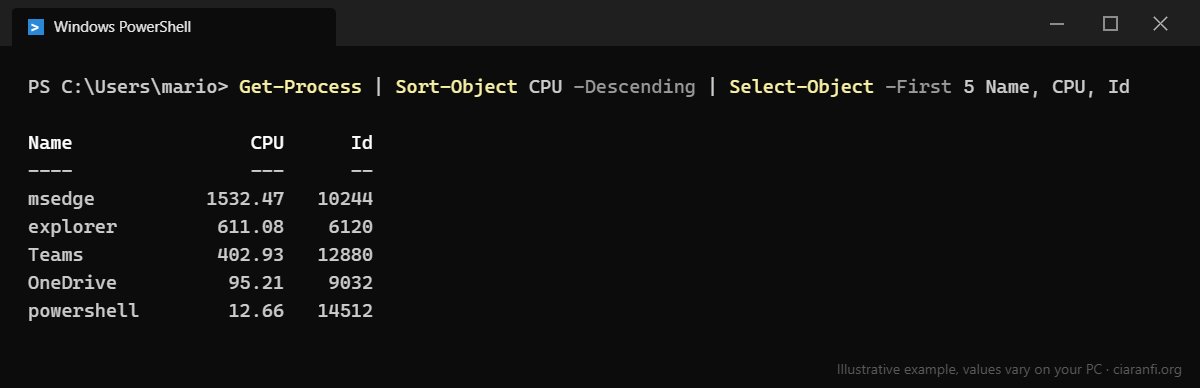
The four commands you will use most in a pipeline:
| Command | What it does | Example |
|---|---|---|
Where-Object |
Filters | Get-Service | Where-Object Status -eq 'Stopped' |
Sort-Object |
Sorts | Get-ChildItem | Sort-Object Length -Descending |
Select-Object |
Picks columns or the first results | Get-Volume | Select-Object DriveLetter, SizeRemaining |
Export-Csv |
Saves to a file Excel can open | Get-Service | Export-Csv services.csv -NoTypeInformation -Encoding UTF8 |
To see a result in a window with filtering and sorting, add | Out-GridView at the end (available on Windows).
Practical example: the largest files in Downloads
Get-ChildItem "$env:USERPROFILE\Downloads" -File -Recurse |
  Sort-Object Length -Descending |
  Select-Object -First 10 Name, @{n='MB'; e={[math]::Round($_.Length / 1MB, 1)}}
The MB column is a calculated property: it divides the size in bytes by 1 MB and rounds to one decimal. It is a read-only command: it shows the files, it does not delete them.
Step 6: running a script
A .ps1 file contains a sequence of commands. For safety, Windows does not run scripts until you allow it. Check the current setting:
Get-ExecutionPolicy -ListTo allow your own scripts and signed downloaded scripts, for your user only:
Set-ExecutionPolicy -Scope CurrentUser -ExecutionPolicy RemoteSignedAvoid Unrestricted and Bypass as a permanent setting. If you download a script from a source you know and have read its content, you can unblock it with Unblock-File .\script.ps1. The following guides use short scripts commented line by line.
Security: commands you must not paste
Beware of PowerShell scams. Some attack campaigns (known as “ClickFix” or fake CAPTCHAs) show a page saying “press Win+R, then Ctrl+V and Enter to prove you are not a robot”. The pasted text is a PowerShell command that downloads malware.
No legitimate website, bank or support service asks you to paste commands. If it happens, close the page; if you already did it, disconnect the PC from the Internet and change your passwords from another device. See also how to spot online scams.
- Be suspicious of commands containing
-EncodedCommand,iexorInvoke-Expression,DownloadStringor long unreadable strings. - Before running a command that changes the system, look up the cmdlet name in Microsoft’s documentation.
- Use the administrator window only for as long as needed.
Common errors
- “Access is denied”: the command needs an administrator window.
- “File cannot be loaded because running scripts is disabled”: see step 6.
- Paths with spaces: put them in quotes, for example
"C:\Program Files". - The command is not recognised: check you did not type an en dash (–) instead of a hyphen (-); it happens when copying from Word documents.
Sources
- Microsoft Learn, What is PowerShell?
- Microsoft Learn, Installing PowerShell on Windows.
- Microsoft Learn, about_Execution_Policies.
- Microsoft Learn, Discover objects, properties, and methods.