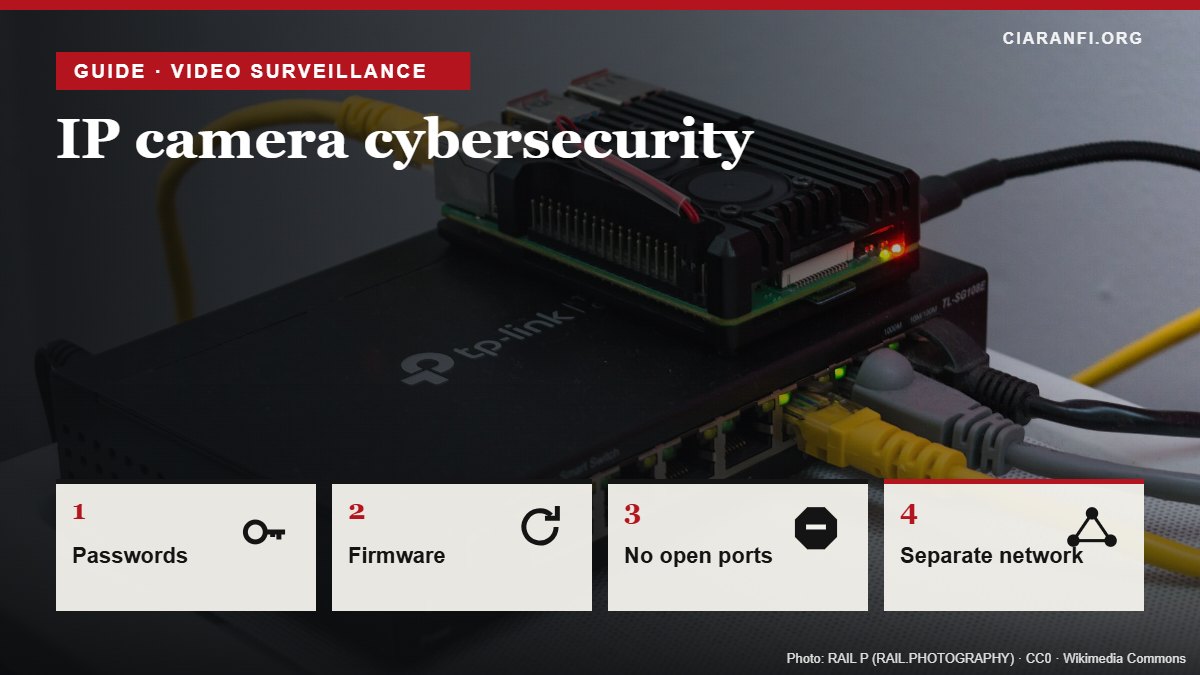
Guide updated on 4 November 2026. It brings together and replaces the site’s articles on factory passwords for cameras and IoT devices, firmware updates and secure remote access.
Cameras are among the most attacked devices in a connected home: they stay on day and night, are rarely updated and are often reachable from the internet. A hacked camera shows strangers what happens in your home, but it can also become the point from which an attacker enters the network and reaches PCs and NAS drives, or a “soldier” in a botnet used to attack others. The Mirai botnet in 2016 was built exactly like this: millions of cameras and recorders with factory passwords.
1. The four most common ways in
| Weakness | How it is exploited | Fix |
|---|---|---|
| Factory or simple password | Automated tools try admin/admin, admin/12345 and similar on every reachable address | Long, unique password; separate viewing user |
| Old firmware | Known, published flaws let attackers in even without a password | Regular updates; replace unsupported models |
| Open ports on the router | Port forwarding or UPnP exposes the web panel, RTSP (554) or vendor services to the whole internet | No open ports, access through a VPN |
| Camera on the same network as your PCs | Once inside, the attacker sees every other device | A separate network for cameras |
2. Passwords: the first things to do at switch-on
- Change the administrator password as soon as you set up the camera or NVR. Use a long password generated by your password manager (see protecting your accounts).
- Create a separate user with view-only rights for the everyday app and for family members. The administrator account is only for settings.
- Protect the vendor’s cloud account with two-step verification: anyone who gets into the app can see your cameras from anywhere in the world.
- Set a password on the RTSP stream and on ONVIF too, if you use them. If you don’t, turn them off.
- The same goes for routers, NAS drives, printers and every smart device: none should keep its factory password.
Some recent models force you to choose a password at first start-up. That is a good sign when deciding what to buy.
3. Firmware updates
- Check in the app or web panel whether automatic updates exist, and turn them on.
- If not, check the vendor’s support page every three months and note the installed version.
- Download firmware only from the official site, never from forums or third-party sites.
- Before buying, check how long the vendor has been publishing updates for its models. A camera that has had no updates for years should be replaced, or kept isolated and without internet access.
4. Viewing cameras from outside without opening ports
The most common, and most dangerous, way to view cameras remotely is to open a port on the router (port forwarding) to the camera or NVR. The login panel then becomes visible to anyone on the internet, and specialised search engines catalogue such devices within hours.
| Method | Security | Notes |
|---|---|---|
| Home VPN (WireGuard or OpenVPN on the router or a small server) | The best | From your phone you join the home network and see the cameras as if you were there; no camera port exposed |
| Vendor cloud or P2P service | Good if the vendor is trustworthy | Convenient, no ports to open; protect the account with two-step verification |
| Port forwarding to the camera or NVR | Avoid | Exposes the device, and any flaws it has, to the whole internet |
Also check that UPnP is turned off on the router, or at least that no cameras or NVRs appear in its list of UPnP rules: many devices open ports by themselves. To view the stream locally without an app, see the guide on IP cameras in VLC over RTSP, which also explains why port 554 must never be exposed.
5. A separate network for cameras
Even with good passwords and updates, it is wise to make sure a compromised camera cannot reach PCs, phones and NAS drives. The options, from simplest to most complete, are the router’s guest network, a dedicated VLAN with firewall rules, or an NVR with a built-in PoE switch that keeps cameras on a network of their own. Step-by-step setups are in the guide on cameras on a separate network.
6. What changes with the new EU rules
- Since 1 August 2025 the cybersecurity requirements of Delegated Regulation (EU) 2022/30 under the Radio Equipment Directive apply: internet-connected wireless devices sold in the EU must protect the network and personal data and help prevent fraud.
- Under the Cyber Resilience Act, Regulation (EU) 2024/2847, manufacturers must report actively exploited vulnerabilities from 11 September 2026, and from 11 December 2027 all products with digital elements must meet security requirements, including updates for a declared support period (Jones Day).
In practice, buying from a vendor that sells officially in Europe and states how many years of updates it will provide becomes a real selection criterion. Cameras imported through unofficial channels often do not meet these rules.
7. Signs that something is wrong
- The camera moves, or its light comes on, when nobody is watching.
- Unknown names or addresses appear in the list of users or logins.
- The password no longer works or the settings have changed.
- The router reports very high outgoing traffic from the camera.
In these cases disconnect the camera from the network, reset it to factory settings, update the firmware, set new passwords and check that no ports are open on the router.
Checklist
- Factory passwords changed on cameras, NVR and router.
- View-only user for daily use; two-step verification on the cloud account.
- Firmware up to date and automatic updates on.
- No ports open on the router to the cameras; UPnP off.
- Remote access only through a VPN or the vendor’s official service.
- Cameras on a network separate from PCs and NAS.
- RTSP, ONVIF, Telnet and unused services turned off.
Sources
- Delegated Regulation (EU) 2022/30, summary by Reed Smith.
- Regulation (EU) 2024/2847 (Cyber Resilience Act), deadlines summarised by Jones Day.
- Related guides on this site: separate network, RTSP and VLC, account protection.