Updating your browser, video player, archiver and other programs by hand means visiting each website, downloading the installer and clicking “Next” several times. winget, the Windows package manager developed by Microsoft, does it with one command: it finds the program, downloads the installer from the publisher’s site, checks its fingerprint (hash) and installs it. This guide builds on PowerShell for beginners.
Before you start
- winget is included in Windows 11 and in up-to-date Windows 10 (1809 and later) through the App Installer app from the Microsoft Store.
- The commands work in both PowerShell and Command Prompt.
- A normal window is enough to search and list updates. Many programs ask for administrator rights during installation: Windows shows the confirmation prompt.
Step 1: check winget is there
winget --versionIf you see a version number (for example v1.x.xxxx) you are ready. If the command is not recognised, open the Microsoft Store, search for App Installer and update it. On the first search winget may ask you to accept the source agreements: answer Y.
winget uses two main sources: winget, the public catalogue curated by Microsoft and the community on GitHub, and msstore, the Microsoft Store. List them with winget source list.
Step 2: find the right program
winget search vlc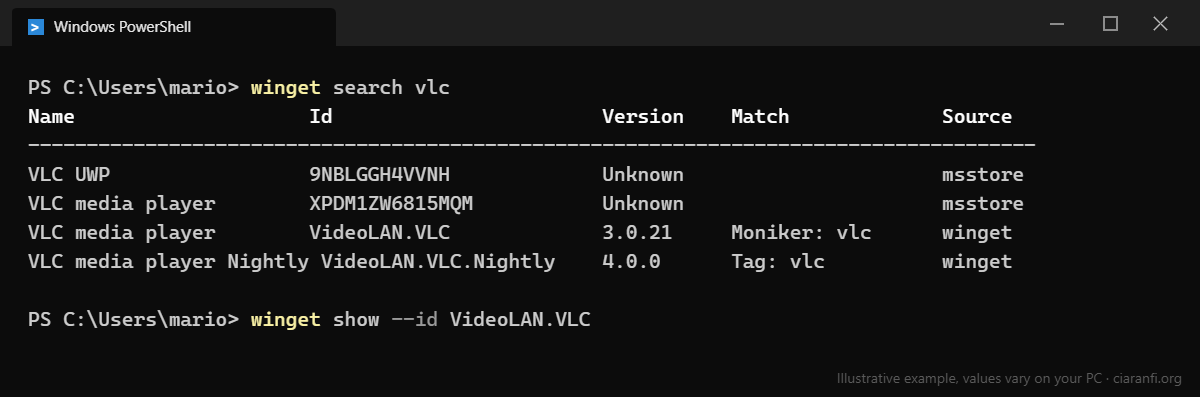
Every package has a unique Id, usually in the form Publisher.Program. Always use the Id, not the name: similar names can mean different programs. Before installing, check the details:
winget show --id VideoLAN.VLCCheck the Publisher, Homepage and Installer Url entries: they should point to the publisher’s official site.
Step 3: install
winget install --id VideoLAN.VLC -e-e (--exact) requires an exact Id match. Useful options:
| Option | Effect |
|---|---|
--silent |
Installs without windows, with default settings |
--scope user or --scope machine |
For your user only or for all users (if the package supports it) |
--source winget |
Searches the winget catalogue only, not the Store |
--version 3.0.21 |
Installs a specific version |
--accept-package-agreements |
Accepts the licence without asking (useful in scripts; read the licence at least once) |
Example: setting up a PC with basic programs
winget install --id Mozilla.Firefox -e
winget install --id 7zip.7zip -e
winget install --id VideoLAN.VLC -e
winget install --id Notepad++.Notepad++ -e
These Ids are the ones in the public catalogue at the time of writing: always check with winget search before using them.
Step 4: list and install updates
Without arguments, winget upgrade shows the programs that have a newer version. It also includes programs installed without winget, when it recognises them.
winget upgrade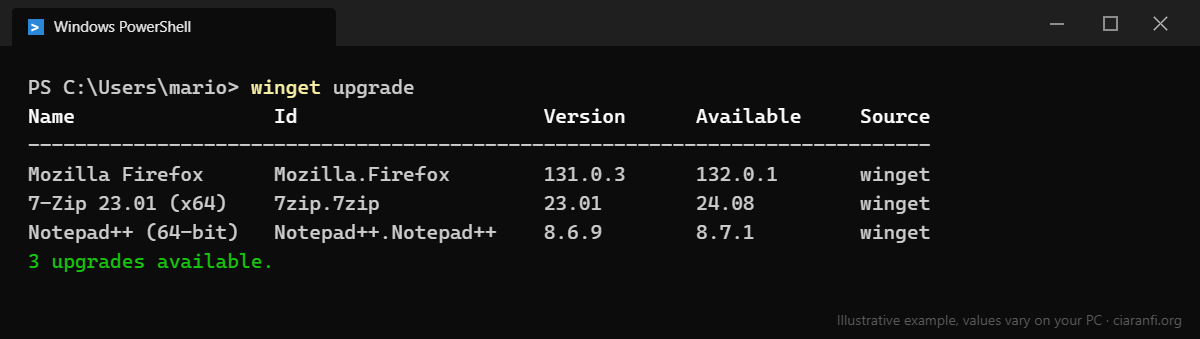
Update a single program:
winget upgrade --id 7zip.7zip -eUpdate everything in the list:
winget upgrade --all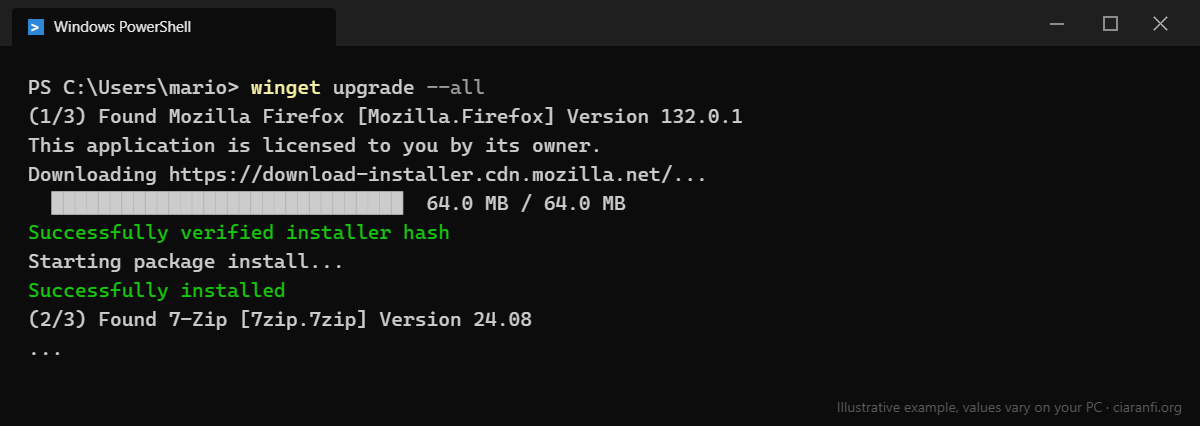
- Look at the list first with
winget upgrade, then run--all: that way you know what will be updated. - Close the programs you are updating (browsers, players, mail clients), or the installer may fail or ask for a restart.
- Some programs do not report their installed version and do not appear. To include them:
winget upgrade --all --include-unknown; use it with care, as it also reinstalls things that are already current. - When it finishes, run
winget upgradeagain: the list should be empty or contain only pinned programs.
Step 5: pin a program to a version
If a program must stay on a certain version (for example for plugin compatibility), use a pin:
winget pin add --id Notepad++.Notepad++
winget pin list
winget pin remove --id Notepad++.Notepad++| Pin type | Command | Effect |
|---|---|---|
| Normal | winget pin add --id … |
Excluded from upgrade --all, but can be updated individually |
| Blocking | … --blocking |
Never updated by winget until you remove the pin |
| Range | … --version 8.* |
Updated only within that version series |
A pin only applies to winget: the program can still update itself through its own updater.
Step 6: move your programs to a new PC
On the old PC, export the package list to a JSON file:
winget export -o "$env:USERPROFILE\Desktop\programs.json"Copy the file to the new PC and install everything:
winget import -i "$env:USERPROFILE\Desktop\programs.json" --ignore-unavailableOpen the file in Notepad first and remove the programs you do not want to reinstall. The file contains only the list of programs, not their settings or your documents.
Common errors
| Message or problem | What to do |
|---|---|
| No package found | Search with a shorter name or check the Id with winget search |
| Multiple packages found | Use --id with -e, and if needed --source winget |
| Installer hash does not match | Do not force the installation: the downloaded file is not the expected one. Try again later or download from the official site |
| Installation failed with an error code | Close the program, retry with --interactive to see the installer; open the logs with winget upgrade --open-logs |
| A program always reappears in the updates | It is often installed twice or for two scopes (user and machine). Check with winget list --id … |
Security. winget downloads installers from the addresses in the catalogue and checks their fingerprint, but it does not replace your judgement: install only programs you know, check the publisher with winget show and do not use the --ignore-security-hash option.
Sources
- Microsoft Learn, Use WinGet to install and manage applications.
- Microsoft Learn, the upgrade, pin, export and import commands.
- GitHub, winget public package repository.