Guide updated on 4 November 2026. It brings together and replaces the site’s articles on ransomware, 3-2-1 backups, cloud storage, software updates and antivirus.
According to Verizon’s 2025 Data Breach Investigations Report, ransomware was present in 44% of the breaches analysed, and among small and medium-sized businesses that were breached the share rose to 88%. The good news is in the same report: 64% of victims did not pay the ransom, up from 50% two years earlier. If you have a copy of your data that ransomware cannot reach, you do not need to pay.
This guide brings together the three defences that matter: backups, so you can start again; updates, to close the ways in; and device protection, to stop what gets through anyway.
1. How ransomware works
Ransomware is a program that encrypts your files and demands money for the key. Modern attacks almost always follow the same stages:
- Getting in: a phishing attachment or link, a stolen password for remote access, an unpatched device exposed to the internet (VPN, NAS, router).
- Exploring: in a business, attackers spend days or weeks in the network looking for servers, shared folders and above all backups.
- Stealing data: before encrypting, they copy documents so they can threaten to publish them (“double extortion”).
- Encrypting: every reachable file, including connected drives and network folders, becomes unreadable. The ransom note appears.
Two practical consequences. A backup that is always connected, like a USB drive left plugged in or a permanently mapped network folder, gets encrypted along with everything else. And paying guarantees nothing: the key may not work and the stolen data may be published anyway.
2. The 3-2-1 backup rule
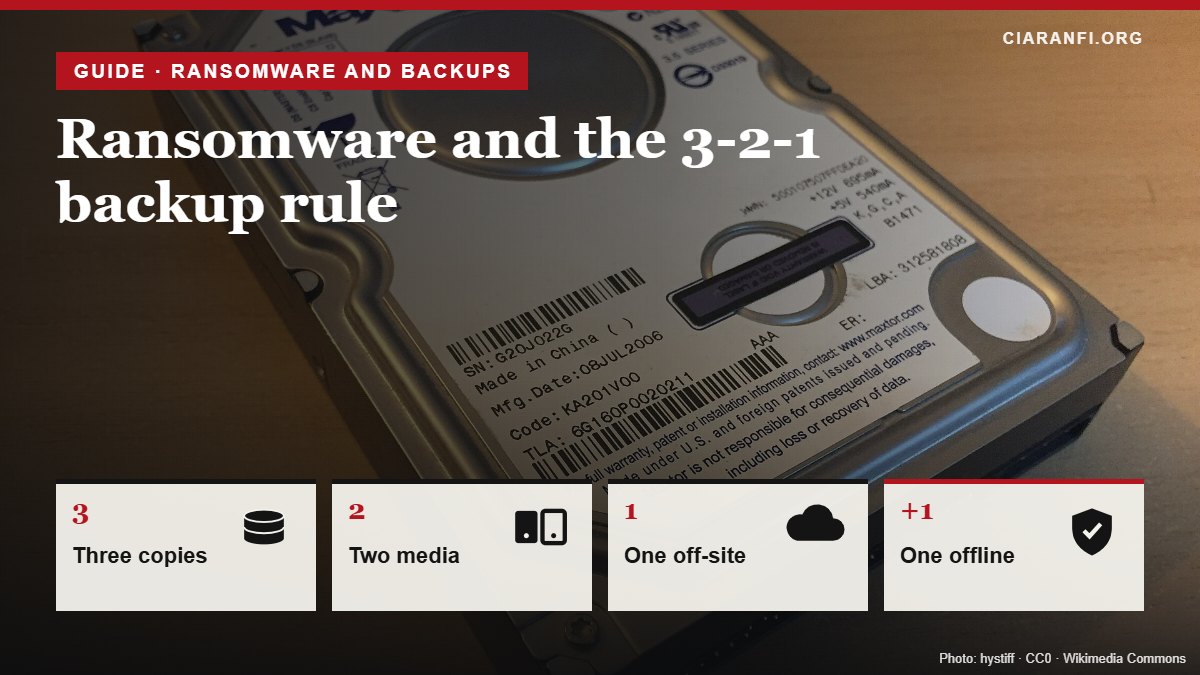
The 3-2-1 rule is easy to remember and covers almost every failure, theft or attack:
- 3 copies of your data: the original and two backups.
- 2 different media: for example the computer’s drive and an external drive or NAS.
- 1 copy off-site: an online backup service or a drive kept somewhere else.
For ransomware, two more digits are often added in the 3-2-1-1-0 variant: one copy offline or immutable (a drive you unplug after the backup, or a service with locked versions) and zero errors when you test a restore.
| Situation | Copy 1 | Copy 2 | Off-site copy |
|---|---|---|---|
| Family with one PC and two phones | Phone photos synced to the PC | USB drive plugged in once a week with File History (Windows) or Time Machine (Mac), then unplugged | Online backup service with previous versions |
| Freelancer or small office | Documents on the NAS | NAS snapshots that the PCs cannot delete | Encrypted NAS backup to a cloud service or a second NAS at another site |
| Working only in the cloud (Google, Microsoft 365) | The data in the service | Regular export to a local drive | Third-party cloud backup service |
A backup you have never tried to restore is only a hope. Once a month, restore a random file; once a year, simulate losing your PC: could you put everything back on a new computer?
If your backup drive is old, check its health: the guide on reading SMART values for SSDs and hard drives explains which values to look at.
3. A synced cloud folder is not a backup
OneDrive, Google Drive, iCloud Drive and Dropbox are mainly for syncing: if you change or delete a file on your PC, the same change reaches the cloud straight away. If ransomware encrypts the folder, the cloud receives the encrypted files.
These services do keep previous versions and a recycle bin for a while, and some can restore a whole folder to an earlier date. Before relying on that, check in your plan’s settings:
- how many days versions and deleted files are kept;
- whether the whole folder can be restored to a chosen date;
- whether the account is protected by two-step verification, because anyone who gets into the account can delete the versions too.
A real backup service, by contrast, copies your data to a separate archive and keeps versions even when the original is deleted or encrypted.
4. Updates: closing the ways in
Many attacks exploit flaws that have already been fixed: the patch exists but was never installed. When a vendor releases a security update, it also reveals where the problem was, and criminals start looking for devices that have fallen behind.
| Device | Where to turn on automatic updates |
|---|---|
| Windows 11 | Settings > Windows Update. For Windows 10, see how to check coverage until 2027. |
| Mac | System Settings > General > Software Update > Automatic updates |
| iPhone and Android | Settings > General > Software Update (iPhone) or Settings > System > Update (Android); automatic app updates in the store |
| Browsers | Chrome, Edge and Firefox update themselves, but only if you close and reopen them now and then |
| Routers, NAS, cameras | The device’s web panel or the vendor’s app: turn on automatic firmware updates if available |
A device that no longer receives security updates should be replaced, or at least isolated from the rest of the network, especially if it can be reached from the internet. That applies to many routers supplied years ago and to old NAS boxes.
5. Do you still need antivirus?
Yes, but you do not necessarily need to buy one. Windows 10 and 11 include Microsoft Defender, on by default, and macOS has built-in protections that block known malware and unsigned apps. For most people the built-in product, kept up to date, is enough.
On Windows it is worth turning on a little-known feature: Controlled folder access, in Windows Security > Virus & threat protection > Ransomware protection. It stops unauthorised programs from changing Documents, Pictures and Desktop. If a legitimate program is blocked, you can allow it from the same menu.
A third-party antivirus makes sense if you need extra features, such as managing several family devices or central control in an office. Avoid unknown “free” products and ads warning of viruses found on your phone: they are often the scam themselves.
No antivirus replaces backups and caution: most attacks start with someone opening something. See the guide on online scams.
6. If ransomware hits
- Isolate: unplug the network cable and turn off Wi-Fi on affected devices. Don’t switch them off if a technician will examine them, but disconnect backup drives at once.
- Don’t pay on impulse: photograph the ransom note and write down the ransomware’s name.
- Look for a decryptor: the No More Ransom project, backed by Europol and police forces, offers free tools for several ransomware families.
- Report it to the police. A business must also consider notifying the data protection authority within 72 hours if personal data is involved and, if it falls under NIS rules, the national cybersecurity agency (in Italy, ACN).
- Restore from a clean backup, after reinstalling the system and changing every password from a safe device.
Checklist
- I have three copies of my important data, on two media, one off-site.
- At least one copy is offline or immutable.
- I have restored a file in the last month.
- Automatic updates are on for PC, phone, browser, router and NAS.
- Microsoft Defender or another antivirus is active and up to date; Controlled folder access is on.
- Two-step verification protects my cloud and backup accounts.
Sources
- Verizon, 2025 Data Breach Investigations Report, summary on The Record.
- No More Ransom, Europol and partners.
- Microsoft, Windows Security, Controlled folder access.
- Agenzia per la Cybersicurezza Nazionale (Italy’s national cybersecurity agency).